English French German Spain Italian Dutch Russian Portuguese Japanese Korean Arabic Chinese Simplified

17.4.13

Download Thousands of Applications for your Android for free - Android BlackMarket


Android Blackmarket : 
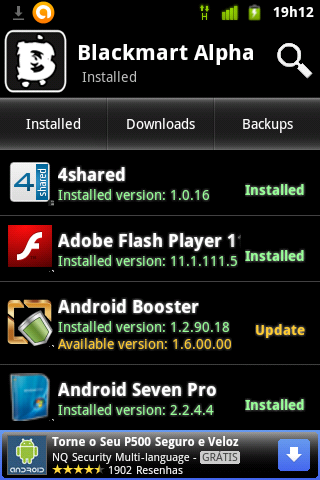
Blackmart is a tools to get all android application for free. You can use this apps to get various apps without paying for them. Maybe you have using similar application such as appbrain, bestmartket, and other, but blackmart is different.
Also used to update your device apps search for paid apps or upload apps from your device to host so others can download them.
 Also this app is updated quickly you'll be notified if there is an update.
Stop thinking where you will find money to pay any paid app.This app is the answer of your problem.Now get  any app you want for FREE.Try it now!

Requirements :
 Android 2.2+

Download Instructions:
- Download file
- Put the .apk file in your sd card
- Install .apk file in your phone by clicking  on it
- Finished! Enjoy thousands of free apps for your Android


16.4.13

FaceNiff - Facebook Session Hijacker for Android


FaceNiff is an Android app that allows you to sniff and intercept web session profiles over the WiFi that your mobile is connected to.
 
It is possible to hijack sessions only when WiFi is not using EAP, but it should work over any private networks (Open/WEP/WPA-PSK/WPA2-PSK)
 
It's kind of like Firesheep for android. Maybe a bit easier to use (and it works on WPA2!).
Please note that if web user uses SSL this application won't work.

*Legal notice: this application is for educational purposes only. Do not try to use it if it's not legal in your country.*

*Rooted Phone is required* 

Supported services (new coming soon):
  • FaceBook
  • Twitter
  • Youtube
  • Amazon
  • VKontakte
  • Tumblr
  • MySpace
  • Tuenti
  • MeinVZ/StudiVZ
  • Blogger
 

Free Keylogger 3.6


What is Keylogging?

Keylogging  is recording what exactly has been typed on your keyboard.
Keylogging can be used for security measures or for finding out your friends passwords if the login to anything using your pc.

How it works?
 
Keylogging can be done in 2 ways- 1.Hardware keylogging   ,  2.software keyloggers
Keyloggers usually just store the data that is typed by your keyboard

  Free Keylogger 3.6 can record every keystroke typed on keyboard in covert, invisible mode. In addition to standard function, this key logger is able to scan clipboard for changes and monitor Internet navigation (visited websites). With this program you will know what other users are doing on a computer while you are away. Download and begin spying right now, because it is completely free!


17.3.13

The Matrix Live Wallpaper for PC

 The Matrix

This is the distribution page for ZMatrix.  ZMatrix is an animated desktop background which displays streaming characters in a style similar to what was used in the movie 'The Matrix'.  The program was based off of source code for a screen saver found at www.elouai.com, and is entirely free.


Requirements:

-Windows 98, Me, 2000 or Higher
-2.0 Megs of Disk Space


The Matrix Live Wallpaper is also available for Android =>   Click here 


16.3.13

Swiftkey Keyboard apk


           SwiftKey – the best-selling keyboard on Android


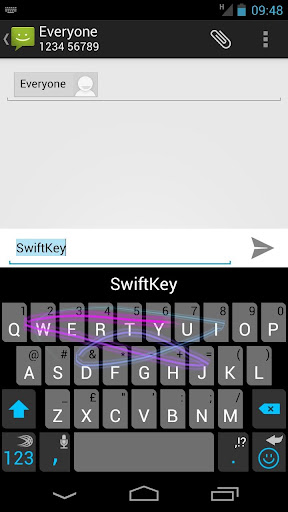
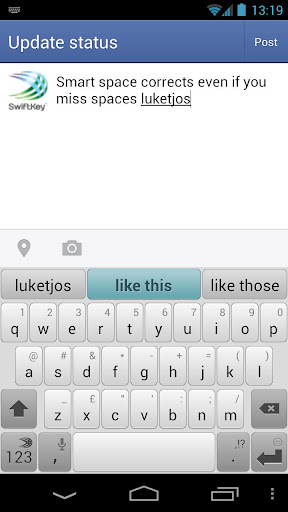
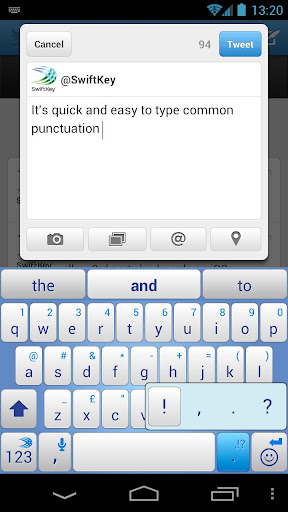
 SwiftKey replaces the touchscreen keyboard on your phone with one that understands how words work together, giving the world’s most accurate autocorrect - and predicting your next word before you press a key.
The keyboard learns as you use it to make corrections and predictions based on the way that you write. It can learn from your Gmail, Facebook, Twitter or blog to make its insights even more personalized. You can also enable up to three languages simultaneously, for true multi-lingual typing.

Switch seamlessly between tapping and gesture typing with our new SwiftKey Flow feature. It combines the mind-reading capabilities of SwiftKey with the speed of gliding your fingers across the screen. With ‘Flow Through Space’, you can also enter entire phrases without lifting your finger from the screen, simply by sliding to the space bar between words.

Language support (enable up to three at once):
English (US)
English (UK)
English (AU)
Afrikaans
Albanian
Arabic
Armenian
Azerbaijani
Basque
Bosnian
Bulgarian
Catalan
Croatian
Czech
Danish
Dutch
Estonian
Finnish
French (CA)
French (FR)
Galician
Georgian
German
Greek
Hebrew
Hindi
Hinglish
Hungarian
Icelandic
Indonesian
Irish
Italian
Javanese
Kazakh
Korean
Latvian
Lithuanian
Macedonian
Malay
Norwegian
Persian (Farsi)
Polish
Portuguese (BR)
Portuguese (PT)
Romanian
Russian
Serbian
Slovak
Slovenian
Spanish (ES)
Spanish (US)
Spanish (LA)
Sundanese
Swedish
Tagalog
Thai
Turkish
Ukrainian
Urdu
Vietnamese


(6.5 MB)


13.12.12

How To Protect Image Theft from Website


You can’t prevent everyone from using your posts. If you don’t want the users to download or steal your images, the best and most effective way is not upload them online! You can’t completely eliminate others from using your images. However, you can work on a few techniques to make it really hard for others who try to steal your images.

1. Add Watermark

Watermark is possibly the most effective and simple way of ensuring image protection. Watermark is a visual copyright placed on an image. The bigger the watermark is, the harder it becomes to steal the image or download them without authorization. However, it is a visual distraction for users who try to view the image.

2. Post Low Resolution Image

Posting a low resolution image is another way of protecting the images. Uploading an image with 550 pixels saved with 72 dpi is a perfect size to upload and makes it look decent while viewing online. At the same time, the image leaves more or less no room to work on for people who download.

3. Disable Right-Click on Webpages

Most people copy images by just right clicking and downloading the images. If you post images on your website, you can prevent “right clicking” by placing the images as background to tables. You can do it easily by following a simple code in CSS. Alternate way to prevent right clicks by using a JavaScript. These scripts override the right clicks when someone tries to copy the image.

4. Indexing Technique

People can misuse your images only when it comes under the search engine indexing. You can protect your images from being indexed by the search engine spiders. Using a non-index (noindex) and un-follow (nofollow) tags eliminates the entire webpage from getting indexed. However, if you want only the content to be indexed and not the image all you need is a Meta tag. The Meta information prevents the spiders from indexing just the image.

These are some of the techniques you can follow to protect your images from online thefts! If you really wish to share your images on a public forum, you have to take all the possible steps to protect them. Though these take time, you will not get a nasty surprise when you see your image on a different website!

How To Speed-up Windows


1. Speeding up your Windows PC startup time :

You can optimize your computer’s startup speed by launching Run on your Windows computer and typing “msconfig” without the quotes. This will take you to the System Configuration Settings which has five tabs – General, Boot, Services, Startup, and Tools.

Under the General tab, you’ll find 3 startup selections: normal, diagnostic, and selective. During normal startup, all device drivers and services will be loaded by your computer. If this is ticked, it may be the reason why your computer is taking long. Choose either diagnostic or selective startup to speed up the starting time of your Windows computer. Diagnostic startup only loads basic devices and services whereas with selective startup, you can choose to load neither system services nor startup items. After making a selection select “Apply.”

Under the Boot tab, select Advanced options so you can choose the number of processors to facilitate boot speed. If you have a dual-core or quad-core processor, assigning more than one of them to help with the start-up process can significantly boost your computer’s speed. Unfortunately, this optimization tweak is not so efficient on power so if you’re using a laptop, expect some battery drain after startup.

Finally, there’s the Services and Startup tab where you can specifically choose which services and startup items are going to load.

2. Speeding up your Windows Start Menu :

The Start Menu is another serious offender as it often takes time to load. Once again you need to open Run but this time, you will type “regedit.exe” to launch the Registry Editor. Go to the HKEY_CURRENT_USER folder and find Control Panel –> Desktop –> MenuShowDelay. Then, double click MenuShowDelay to edit its value. Type in the numbers on the blank and hit “OK.” Remember, the lower the value the faster the Start Menu will load.

Another trick for speeding up your Windows Start Menu would be to limit the number of shortcuts on your desktop. It could be that you just have too many icons on your desktop and that’s what is causing your computer to take long when loading the Start Menu.

3. Speeding up the Right Click Menu :

Yet another disappointing slow-down that Windows users experience is the time it takes the Menu to show up when hitting the right click. Installing third-party programs that allow you to remove items from the context menu should speed it up.